Chrome Beta
- 4.4
- Rating
- 50.00M
- Installs
- Free
- Price
 Analysis by App-foxy
I approached Chrome Beta as a practical productivity app rather than just another browser. Its main appeal is familiar: it gives Android users an early version of Google’s Chrome experience, with a straightforward path from opening the app to searching, reading, and returning to useful pages. The word “Beta” matters, though. This is a testing channel, so the experience can feel less settled than the regular Chrome app.
That makes it an interesting choice for people who want to see browser changes sooner, but it also changes who should install it. If your phone is your main tool for banking, work, school, travel, or anything that cannot tolerate occasional rough edges, the standard stable browser is the safer everyday choice. If you enjoy trying newer browser behavior and can live with some uncertainty, this version offers a convenient way to do that without paying anything.
What to expect from Chrome Beta
Chrome Beta is a free productivity app from Google LLC for Android devices, with an Everyone age rating. It has been available since December 12, 2012, and its broad adoption is easy to understand: the interface is recognizable, the basic browsing flow is quick to learn, and it fits naturally into the wider Google ecosystem many Android users already use.
You May Also Like

 Blood Strike: 2.5 Anniversary
Blood Strike’s Loadouts Turn Every Drop Into a Tactical Gamble
A close look at Blood Strike’s custom loadouts: how fast access to signature weapons reshapes its battle royale rhythm, rewards preparation, and narrows the gap between fights.

 Pandora - Music & Podcasts
Pandora’s Music Is Easy to Start, but Harder to Recover
Pandora’s strength is its low-effort path from a seed to a station. Its weak spot is how much confidence it asks you to place in connection, setup, and quiet recovery.

 8 Ball Pool
 Is Built on Rivalries, Rematches, and Routine
A close look at the rivalries, rematches, shared routines, and unanswered safety questions that turn a quick pool match into a persistent mobile community.

 Samsung Music
’s Quiet Strength Is Playing What You Already Own
Its reach comes less from spectacle than from dependable access to a personal library. That simplicity is both the app’s strongest retention engine and its ceiling.

 AccuWeather: Weather Radar
AccuWeather Review: A Quick, Clear Forecast for Everyday Decisions
For everyday plans, the best forecast is the one you can understand quickly. AccuWeather makes rain timing, radar, and local conditions easy to act on, with a few trade-offs.

 Hill Climb Racing
Why Hill Climb Racing Still Turns Crashes Into One More Run
A tiny car, a bumpy hill and one more upgrade: Hill Climb Racing keeps resurfacing because its simple chaos makes every near-miss feel personal.
More From Our News Desk



The store presents it as a beta version of Chrome, and that is the most useful way to think about it. You are not installing a completely different browser with an unfamiliar design. You are choosing a channel where browser changes may arrive before they become part of the more conservative release. In practice, that can mean getting an earlier look at interface adjustments or experimental behavior, while accepting that a change may need polishing.
Its average rating is 4.4 from roughly 598,000 ratings, with about 20,000 written reviews, and the app has passed 50 million installs. Those figures suggest that this is not an obscure side project. Even so, popularity should not be confused with guaranteed stability. A beta app can be widely used and still be the wrong fit for someone who wants every browsing session to behave exactly the same way.
For a first-time user, the important expectation is simple: install it for the familiar Chrome workflow, but treat it as a place to test and observe rather than as a promise of perfect consistency. You can search the web, open pages, follow links, and build a normal browsing habit. The difference is your tolerance for occasional changes and the possibility that a newly introduced behavior may not feel finished.
Who will get the most from it
I would recommend this app to Android users who like seeing what is coming next, developers who need to check how a site behaves in a newer Chrome environment, and curious users who want a second browser for experimenting. It is also useful if you already know the regular Chrome layout and want a low-friction way to compare browser behavior without learning an entirely different product.
It is less suitable for someone who wants a browser that is invisible and predictable. A person who only needs to read news, check messages, fill in forms, and access essential services may be happier with the standard release. The beta label is not a decoration; it is a reminder to keep an alternative available when a page or workflow matters.
How it compares with ordinary browser choices
Compared with the stable Chrome app, the key trade-off is release timing versus confidence. The stable version is designed to be the dependable default. Chrome Beta gives you earlier access to changes, but earlier access can bring confusing interface differences or behavior that later gets adjusted. I see the two versions as companions rather than direct replacements: one for routine tasks, the other for trying and checking what is new.
Compared with browsers built around privacy controls, customization, or a completely independent rendering approach, Chrome Beta is less about creating a personal browser environment and more about staying close to Google’s Chrome direction. If your first priority is extensive visual customization, specialized privacy tools, or a deliberately different browsing experience, another browser may suit you better. Chrome Beta makes the most sense when familiarity and early testing matter more than a distinctive identity.
From installation to your first useful result
I’d begin with one familiar, low-stakes task rather than moving all my browsing over at once. A quick search followed by opening a result and returning to it gives me a useful baseline, while leaving room to compare the same page in my usual browser if anything feels off. That first check leads naturally to deciding which everyday tasks belong in the beta channel.
Start with a small, low-risk setup
After installing, I suggest avoiding a dramatic first test. Open the app and begin with a page you already know well, such as a familiar website or a simple search. This gives you a baseline for loading, reading, and moving back through pages. Starting with something ordinary makes it easier to notice what the beta channel changes without confusing a complicated website problem with a browser problem.
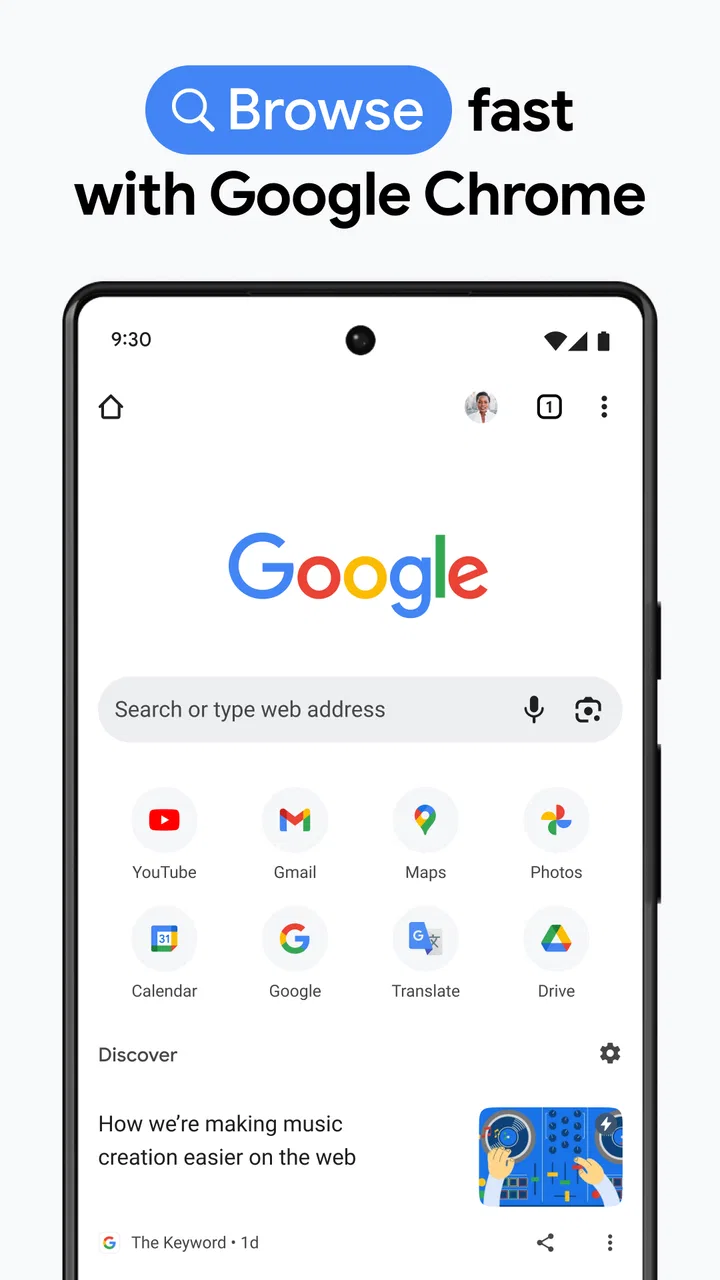
Give yourself a few minutes to locate the controls you use most. Find the address and search field, open a page, follow one link, and return to the previous page. That small sequence is enough to confirm that the app feels comfortable in your hand. It also answers an important first-time question: you do not need to understand every possible browser option before you can use Chrome Beta successfully.
If you normally use Chrome, the transition should feel familiar. If you are moving from another browser, resist the temptation to judge the app only by the first screen. The real test is whether the basic loop feels natural: search, read, move to another page, and return without losing your place. For most people, that loop is the first meaningful success.
Make your first successful action deliberate
My preferred first task is a short research job. Search for a topic you need today, open a reliable result, read enough to find one useful detail, and then return to the results. This tests more than simply launching a page. It checks whether the app supports the way you actually browse when you are comparing information, checking instructions, or looking for a specific answer.
A realistic example would be preparing to cook dinner. I might search for a recipe, open it, move between the ingredient list and the method, and then return to the search results to compare another version. That workflow reveals whether the page is easy to revisit and whether the browser’s navigation feels predictable. It is more meaningful than opening a random homepage because it mirrors the short, repeated tasks that make a mobile browser useful.
Another good first test is a form that is not important or time-sensitive. Try entering a small amount of information, move between fields, and then leave without submitting anything sensitive. This helps you learn how the keyboard, page layout, and navigation interact on your phone. I would not make a financial transaction or an urgent work submission your first experiment with any beta app.
Use a two-browser routine when reliability matters
The most practical setup is to keep the stable browser for essential tasks and use Chrome Beta for testing, casual browsing, or checking whether a website behaves differently. This is not an admission that the beta is unusable. It is simply good risk management. If a page behaves strangely, you can immediately compare it in the stable release instead of wasting time wondering whether the website itself is broken.
This two-browser approach is especially useful for people who work from a phone. You can use the beta to inspect a new site layout, check a web-based tool, or follow browser changes, then switch to the dependable option for a deadline. The arrangement also makes troubleshooting easier: if the same page fails in both browsers, the site or connection deserves attention; if only the beta struggles, you have a clearer clue.
Understand what “beta” changes in daily use
The main friction is not necessarily a dramatic crash. It may be a small change in where a control appears, a page that behaves differently after an update, or a feature that feels unfinished compared with what you remember. These details matter because browsing is repetitive. A minor adjustment can slow you down when you are opening many pages or switching between tasks.
I also recommend paying attention to your own habits. If you become annoyed whenever an interface changes, the stable channel will probably serve you better. If you enjoy noticing differences and can adapt quickly, the same changes may be part of the appeal. The app is not automatically better because it is newer; its value depends on whether early access is worth the extra uncertainty for you.
Common confusion for new users
The first misunderstanding is assuming that Beta means a separate browser with a completely different set of everyday functions. It is better understood as an earlier Chrome release channel. The familiar browsing purpose remains intact, but the software may be in transition. That distinction helps set realistic expectations from the beginning.
A second confusion is treating the beta channel as a performance guarantee. The store summary emphasizes speed and simplicity, but real browsing speed also depends on the website, network, phone, and the page itself. A lightweight page may feel immediate, while a media-heavy or poorly designed site can still be slow. I judge the app by how smoothly it handles my normal browsing patterns, not by expecting every page to load instantly.
A third issue is assuming that a problem must be permanent. With a beta app, a strange behavior can be tied to a particular release or website. Before changing several phone settings, I would repeat the same action on a simple page, close and reopen the app, and compare the result with the stable browser. That basic sequence often tells you whether you are seeing a general problem or a one-off interaction.
It is also easy to confuse browser choice with account or website behavior. A page may ask you to sign in, request a preference, or display content differently because of its own design. I recommend separating those questions: first check whether the page opens and responds, then decide whether its account flow is the issue. This saves time and prevents unnecessary changes to your phone.
A useful testing habit for advanced users
One non-obvious benefit of Chrome Beta is that it can act as a comparison tool. When a website is updated, open the same task in the beta and stable versions and note the exact difference. Do not rely on a vague feeling that one is “better.” Check a specific action: opening a menu, completing a search, moving through a form, or returning to a result. This turns the app into a practical diagnostic tool rather than merely a second icon.
For web developers and testers, that habit is even more valuable. A site can appear fine in the browser you use every day while exposing a layout or interaction issue in a newer Chrome environment. Testing a short, repeatable path is more useful than browsing randomly. Record the page, the action, and the visible result in plain language so that you can reproduce the issue later.
There is a trade-off here: a beta browser can reveal future-facing behavior, but it should not be the only environment used to judge a site. A website has to work for people on stable releases too. I would use Chrome Beta to broaden testing, not to replace ordinary compatibility checks.
When another option is better
Choose the stable Chrome app if you want the least disruptive default and do not care about early changes. Choose a privacy-focused browser if controlling tracking and browsing data is the central reason you are changing browsers. Choose a highly customizable alternative if you want to reshape the interface or rely on specialized tools that Chrome Beta does not prioritize.
I would also skip this app if your phone has limited room for experimentation, if you have no backup browser, or if you depend on a single mobile browser for urgent work. The free price removes a financial barrier, but it does not remove the practical cost of troubleshooting. Time and reliability are resources too.
The next step after your first session
Once the basic search-and-return workflow feels comfortable, choose one repeated task from your real day and use it for a short trial. It could be checking a class page, reading documentation, comparing products, or opening a web tool you use regularly. Keep the task ordinary and note whether Chrome Beta makes it easier, unchanged, or more frustrating than your current browser.
If it works well, gradually expand your use to low-risk browsing and occasional site checks. Keep essential transactions in the browser you trust most until you have enough experience to make your own judgment. This approach gives the beta version a fair test without making your whole digital routine depend on it immediately.
My final view is that Chrome Beta is worthwhile for curious Android users who understand the bargain: familiar Chrome browsing in exchange for earlier changes and a little less certainty. Its large user base and strong 4.4 average show that many people find that balance acceptable, while the free download makes trying it easy. I would recommend it as a companion for exploration and testing, not as an automatic replacement for a stable browser.
If you want to reach a first useful result quickly, start with a familiar page, complete one small research task, compare a questionable result with your regular browser, and then decide how much of your routine belongs here. The best way to use Chrome Beta is deliberately: experiment where the stakes are low, switch tools when reliability matters, and let your own daily workflow decide whether the early access is worth it.
FAQs for Chrome Beta
01What is Chrome Beta and how does it differ from the stable version?
Chrome Beta is a version of the popular Chrome browser that offers users early access to upcoming features and updates before they are released in the stable version. It's designed for users who want to experience new features and provide feedback. However, it may contain bugs or issues not present in the stable release.
02How stable is Chrome Beta, and is it suitable for everyday use?
While Chrome Beta is generally stable, it is intended for testing and feedback, meaning it may occasionally experience bugs or crashes. It provides a good balance of stability and cutting-edge features, but users who rely on their browser for critical tasks should be aware of potential issues.
03What are the system requirements for installing Chrome Beta on Android and iOS?
Chrome Beta is compatible with devices running Android 7.0 or later and iOS 12.0 or later. Users should ensure their devices meet these OS requirements to ensure optimal performance. Additionally, having a device with a decent amount of RAM and storage will enhance the browsing experience.
04How can I provide feedback or report bugs in Chrome Beta?
Google encourages users to provide feedback through the app itself. On Android, you can tap the menu button, select 'Help & feedback,' and follow the prompts. On iOS, you can use the 'Send Feedback' option. This helps developers improve future versions of Chrome.
05Will using Chrome Beta affect my existing data or settings from the stable Chrome version?
Installing Chrome Beta will not overwrite your existing Chrome browser or its data. Both versions can coexist on the same device, allowing you to use either one without affecting the other. This setup makes it easy to test new features without losing your current browsing settings.
Pros
- Access to latest features ahead of stable release.
- Regular updates enhance performance and security.
- Smooth integration with Google services.
- Customizable with various extensions and themes.
- Cross-device sync for seamless browsing experience.
Cons
- May experience occasional bugs and crashes.
- Not all extensions are compatible yet.
- Higher data usage compared to some browsers.
- Some features may be unstable or incomplete.
- Can be resource-intensive on older devices.

Chrome Beta
Gallery